
LIVE COURSE

Planting Plans in Vectorworks (12th November 2026)

Course style: Live, taught via Zoom
Date: 12th November 2026
Time: From 9.30am till 12.45pm GMT 
Students: Maximum of six people
Software required: Vectorworks Landmark 2026
Level: Intermediate

About this course:

Designing a fantastic planting scheme is one thing, but creating an actual planting plan suitable for both client and contractor, calculating densities and creating schedules for ordering another entirely. If manual spreadsheets and repetitive labelling are slowing your work down, or if you want to refresh your knowledge of Vectorworks' planting tools, then this is the course for you.

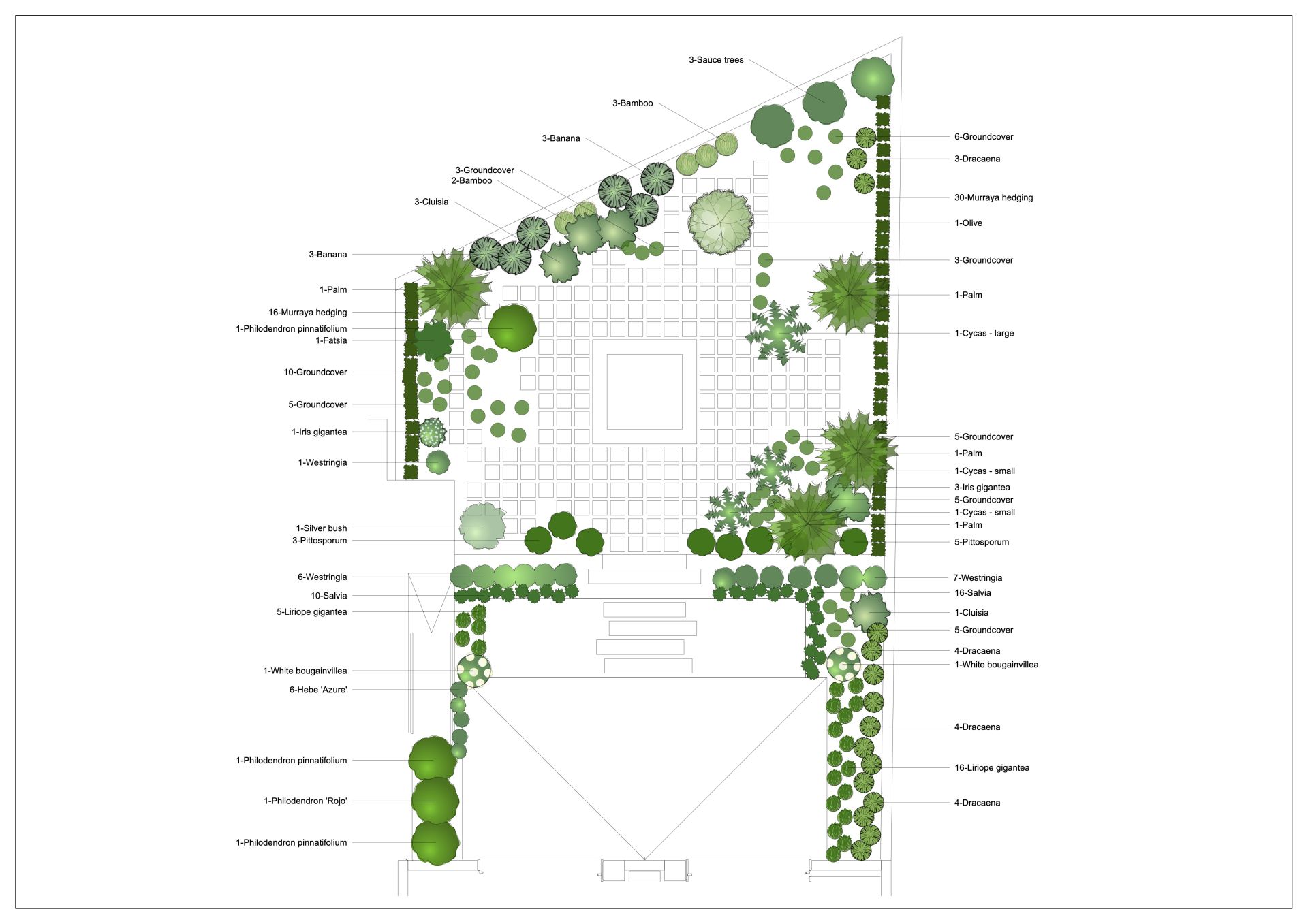
This intensive half-day masterclass takes you deep into Vectorworks Landmark's dedicated Softscape toolkit. Moving well beyond basic 2D graphics, you’ll learn how to build dynamic Plant Styles, manage mixed-species Landscape Areas, integrate existing trees from site surveys, and define structured hedgerows with total confidence.

Say goodbye to counting mistakes and endless manual edits. We’ll guide you step-by-step through creating your own reusable plant catalogues, using smart Data Tags for clean annotations, and generating live, automated plant schedules that update when your drawing changes. We also review Sheet Layers to make sure you're presenting your drawings in the best and most professional way possible.

Designed specifically for landscape designers, architects, and horticulturists who already have a working knowledge of Vectorworks, this course focuses on the real-world workflows that save hours on commercial and residential projects alike. 
Write your awesome label here.

Course Objectives:
  • Understand what Plant objects and Plant Styles are
  • Learn four different ways of creating plants, including creating them for your own plant list
  • Look at the two ways of labelling plants
  • Be able to create Landscape Areas to show areas of matrix style or mass planting
  • Understand how to create both simple and more complex reports on your plants
  • Create both simple and mixed species hedgerows
  • Learn about the Existing Tree tool to capture extensive data about the trees already on site
  • Have a refresh of how Sheet Layers and Viewports work
  • Know how to batch publish groups of sheets

Is this course for me?

  • "What prior knowledge does this require?"

    This course requires a good working knowledge of Vectorworks, including how to draw complex shapes, use the modify tools, understand Classes, Design Layers and Sheet Layers. You should definitely be at the level of our Introduction to Vectorworks course (and confident using the skills that it covers) but being at the Intermediate level wouldn't do any harm.

  • "I’ve used Vectorworks for ages but still don't feel confident with all the planting tools"

    You are the person this course is aimed at! We'ill go through everything related to creating planting plans, labelling them clearly, handling existing trees,
    and creating reports for the nursery or your client, all with the latest version of the software.

  • "I already know the basics—is this too simple for me?

    If you are entirely self-taught, you're likely dragging some slow and inefficient habits along with you! We aim to teach you the best professional workflow which will not only make it easier and quicker to draw but also mean you can work better within a team, and share your work without issue.

    We will also look at new features, such as the Plant Style Manager, which you may not have covered before.

Course Syllabus

1: The Plant Tool


  • What is a plant
  • The Plant tool bar
  • Placing plants
  • Edit a plant group layout
  • Creating new Plant Styles from scratch
  • Duplicating existing Plant Styles
  • Using the Data Mode selection tool
  • Creating Plant Styles From List
  • Plant style parameters
  • Labelling plants - Method 1: Tags (The old-fashioned way!)
  • Labelling plants - Method 2: Data Tags

2: The Plant Style Manager


  • Accessing & setting up the palette
  • Finding, filtering & locating Plants in the drawing
  • Rapid single-plant editing
  • Batch editing multiple Plant Styles
  • Swapping/updating 2D or 3D graphics
  • Place or re-placing plants in your drawing
  • Navigate the model space with Orbit, Pan and Zoom
    Understand SketchUp basics: edges, faces, inference, and axis locking
  • Use the essential drawing tools to create clean 2D shapes ready for 3D modelling
  • Complete a short example project to start building confidence

3: Navigating the Drawing Area


  • Pan
  • Zoom in & out
  • Fit to Page Area
  • Fit to Objects
  • Plan Rotation

4: Landscape Area Tool


  • What is a landscape area?
  • The Landscape Area Tool Bar
  • Draw a new landscape area
  • Convert an existing shape to a landscape area
  • Create your own landscape area styles
  • Special Note: Style parameters
  • Landscape area style parameters
  • Using existing Data Tag styles for Landscape Areas
  • Creating custom data tags for landscape areas 
  • Where to put data tags

5: Snapping


  • The core Snapping tools
  • Smart Points
  • Smart Edge

6: Existing Trees & Hedgerows


  • The Existing Tree Tool
  • Existing tree tool preferences
  • Adding tree dimensions
  • Creating existing trees
  • The Hedgerow Tool
  • Hedgerow tool preferences
  • Creating hedgerows

7: Reports


  • What are they?
  • Creating a simple plant schedule
  • Creating a landscape area report
  • Formatting reports
  • Pre-formatted reports
  • Recalculate quantities
  • Exporting reports
  • Saving reports for repeated use

8: Sheet layer recap


  • Thoughts on Title Blocks
  • Add a north arrow

9: Viewports recap


  • What are Viewports?
  • Create a viewport
  • Create a cropped viewport
  • Edit the Viewport crop
  • Edit Viewport attributes
  • The Annotations layer
  • Adding dimensions
  • Add a scale bar

10: Batch publishing


  • How to export multiple pages into one PDF
  • Saving sets of drawings

Testimonials

At last, VW help and training that is relevant and evolved to work for us, correct our errors, expand our knowledge and make us more efficient in an understandable and easy way. Thank you, we're looking forward to coming back for more nuggets of wisdom and practical tips and planning future courses with you both.
HARRIET PARSONS LANDSCAPE ARCHITECT
We used Digital Landscapes to develop our Vectorworks skills under the excellent tutorship of Fiona. Her flexible approach and deep technical knowledge proved invaluable to our bespoke requirements. Thank you Fiona!
GEORGIA @ LANDSCAPE ASSOCIATES
Created with