LIVE COURSE
Creating Great Visuals (22nd October 2026)
Course style: Live, taught via Zoom
Date: 22nd October 2026
Time: From 9.30am till 16.45pm GMT
Students: Maximum of six people
Software required: Photoshop. SketchUp optional
Level: Beginner
Date: 22nd October 2026
Time: From 9.30am till 16.45pm GMT
Students: Maximum of six people
Software required: Photoshop. SketchUp optional
Level: Beginner
About this course:
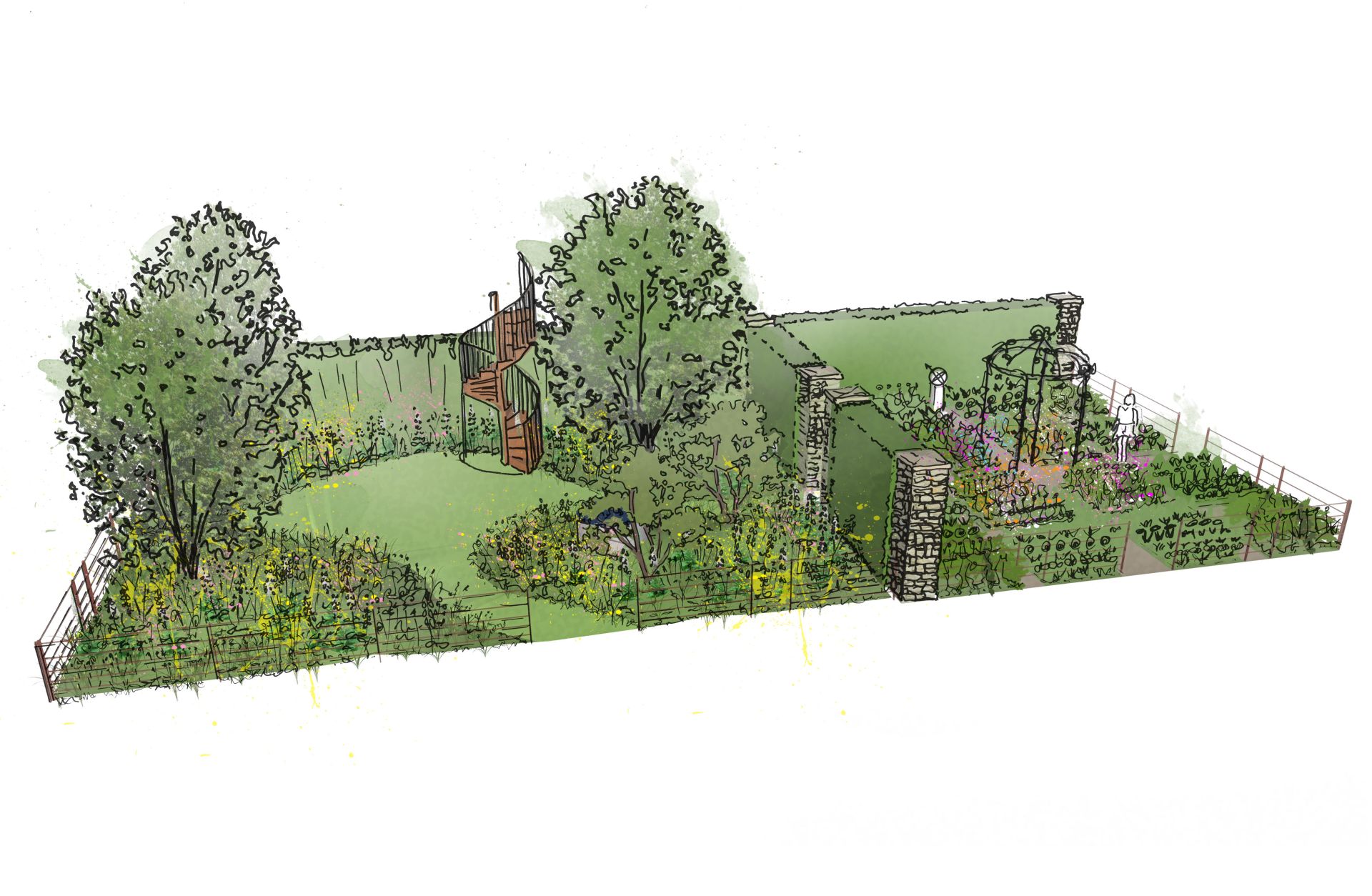
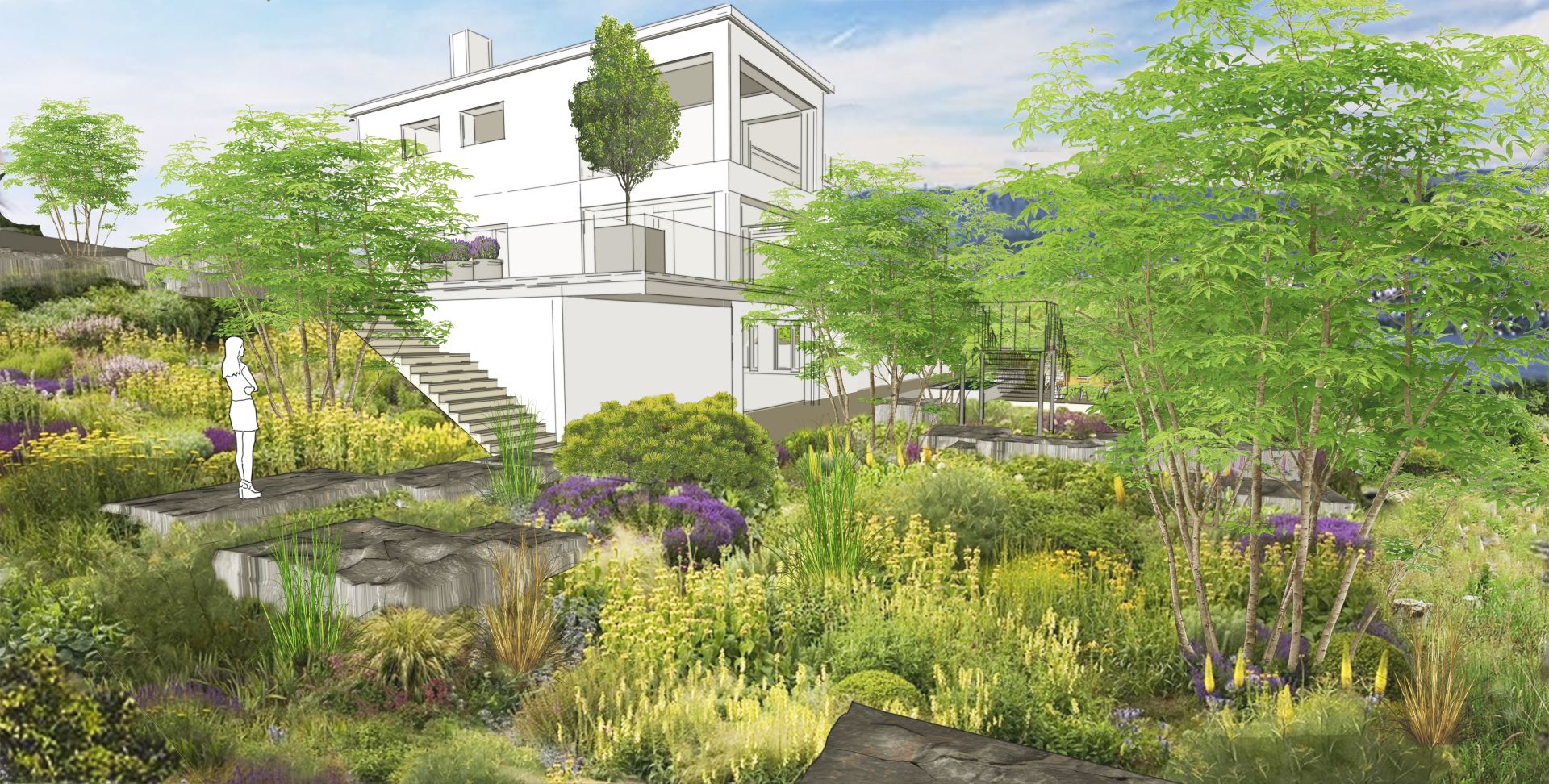
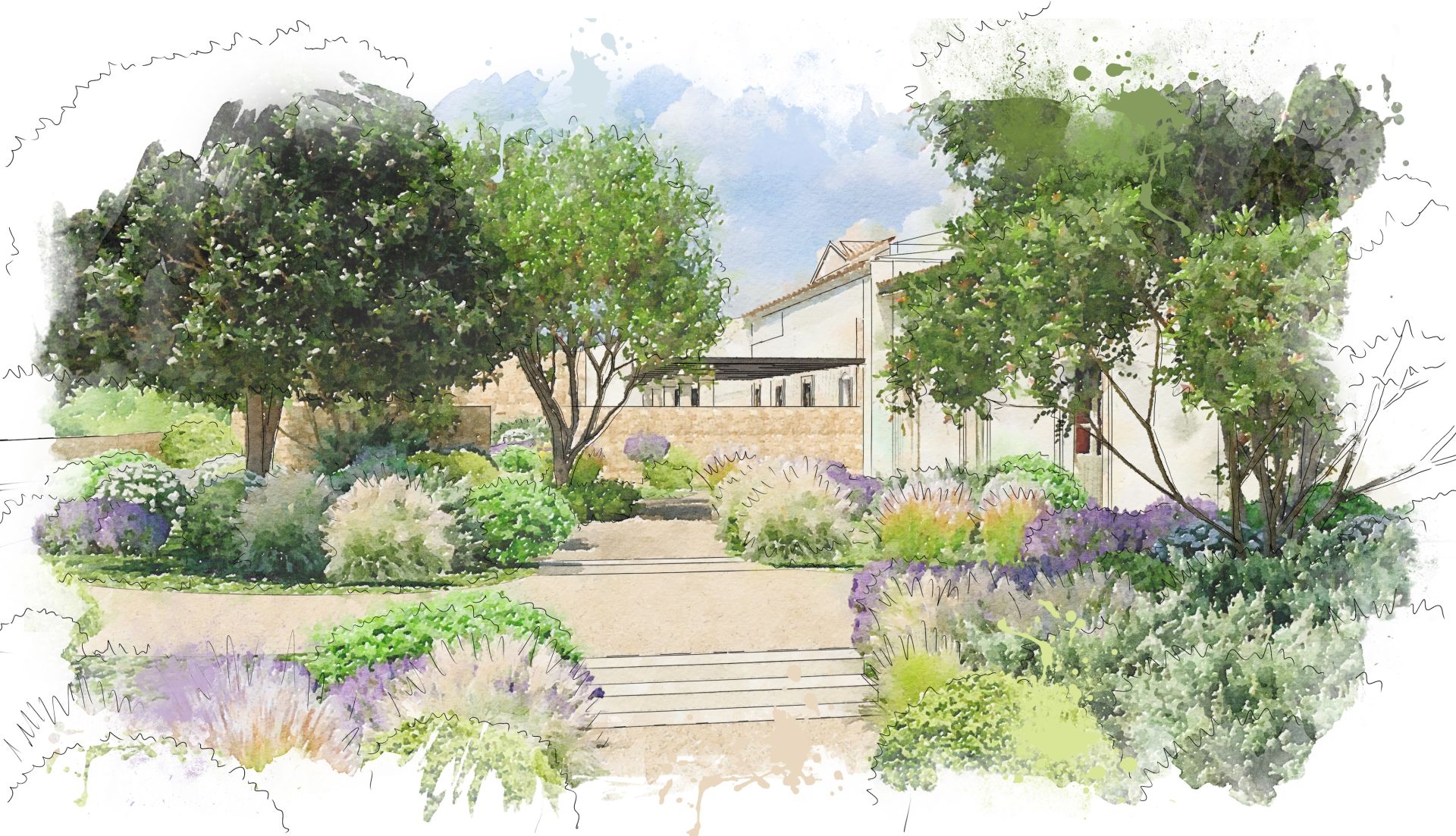
Being able to communicate your design - atmosphere, planting, mass and void and materiality is one of the most important parts of the early stages of a project. It sells your design, gets your client on board and lets you move forward with getting the project built.
This course focuses mainly on one of the most powerful tools for creating visuals from scratch as well as manipulating and editing those made in other bits of software (or drawn by hand) - Adobe Photoshop.
We'll guide you through the key functions of Photoshop - drawing, selecting, masking, retouching, handling transparency and creating and managing layers - making sure you feel confident in using them. You'll learn how to seamlessly blend transparent plant images, realistically adjust lighting and shadows, and effectively alter hardscape materials directly onto existing site photographs.
Beyond traditional photo editing, this course also looks at various practical examples of different visual styles, and also explores how to integrate SketchUp exports and hand-drawn line work into your visuals.
Furthermore, we provide a grounded, practical look at modern AI tools, including Photoshop's Generative Fill, NanoBanana and Midjourney, teaching you how to utilise them to speed up your workflow and enhance your creative process.
By the end of the course, you will have the technical skills and confidence to produce high-quality, atmospheric visuals that accurately represent your designs, and feel confident to be able to make different kinds of visualisations using Photoshop and other digital tools.
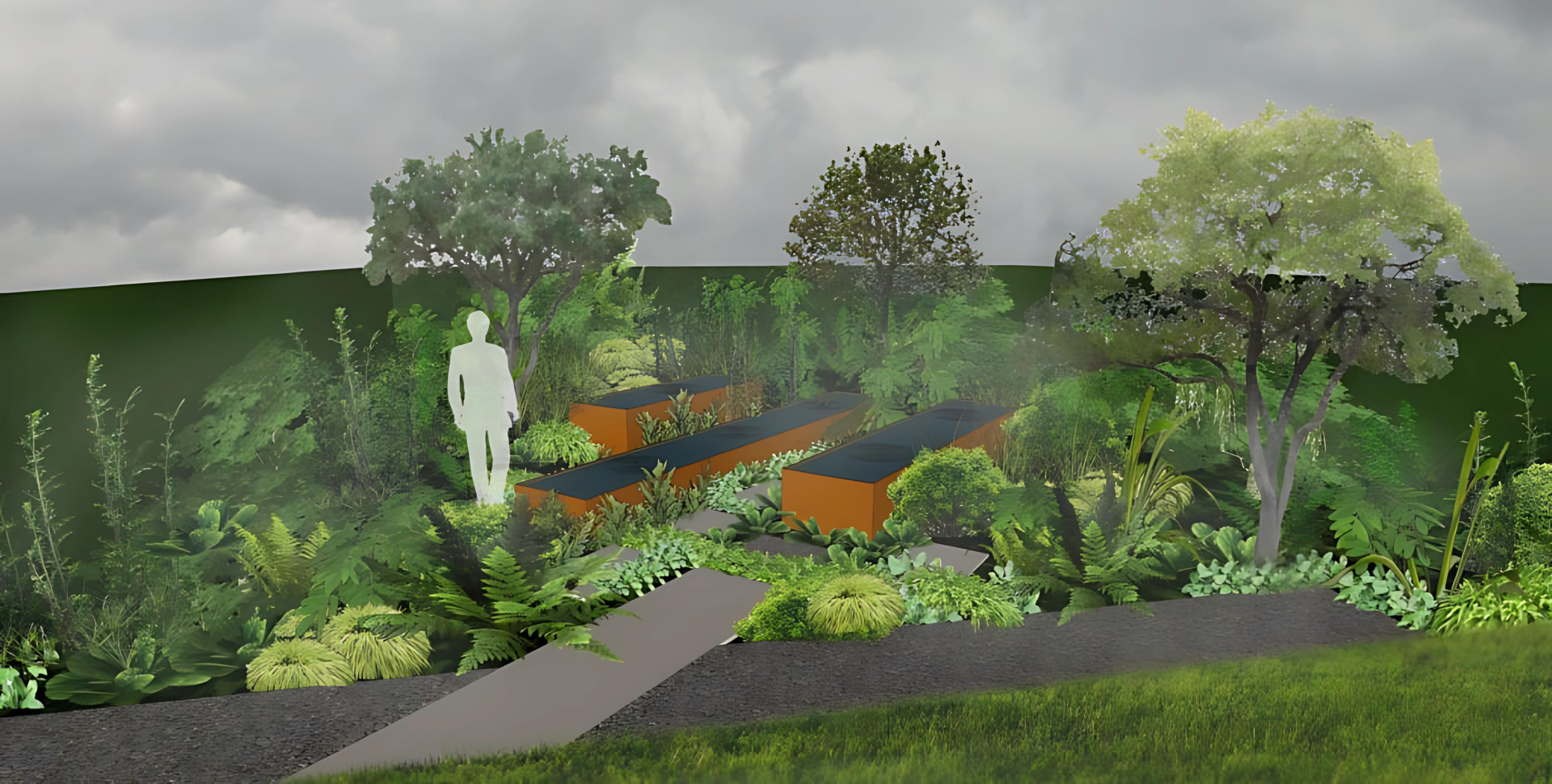
This course focuses mainly on one of the most powerful tools for creating visuals from scratch as well as manipulating and editing those made in other bits of software (or drawn by hand) - Adobe Photoshop.
We'll guide you through the key functions of Photoshop - drawing, selecting, masking, retouching, handling transparency and creating and managing layers - making sure you feel confident in using them. You'll learn how to seamlessly blend transparent plant images, realistically adjust lighting and shadows, and effectively alter hardscape materials directly onto existing site photographs.
Beyond traditional photo editing, this course also looks at various practical examples of different visual styles, and also explores how to integrate SketchUp exports and hand-drawn line work into your visuals.
Furthermore, we provide a grounded, practical look at modern AI tools, including Photoshop's Generative Fill, NanoBanana and Midjourney, teaching you how to utilise them to speed up your workflow and enhance your creative process.
By the end of the course, you will have the technical skills and confidence to produce high-quality, atmospheric visuals that accurately represent your designs, and feel confident to be able to make different kinds of visualisations using Photoshop and other digital tools.
Course Objectives:
- Understanding the core elements of clear, professional visual communication, image resolution, and file types.
- Navigating the Photoshop interface to establish an efficient, customised workspace and templates.
- Mastering layer management for safe, non-destructive editing and complex document organisation.
- Utilising marquee, lasso, and intelligent AI selection tools to accurately isolate specific elements.
- Transforming, scaling, and seamlessly compositing external elements into your base site photographs.
- Applying adjustment layers and interpreting histograms to flawlessly correct exposure, contrast, and colour casts.
- Creating and refining layer masks and clipping masks for precise transparency control and seamless blending.
- Loading and customising specific brush files to paint natural textures and anchor elements with realistic soft shadows.
- Retouching site photos quickly and efficiently using cloning, healing, and content-aware fill tools.
- Understanding the capabilities, limitations, and practical use cases of modern AI generation tools in landscape design.
- Utilising Photoshop's Generative Fill and external tools like Midjourney for rapid conceptual changes and asset creation.
- Executing a complete workflow to build a highly realistic visual from a site photo, including planting and material changes.
- Integrating SketchUp exports and hand-drawn linework using blending modes
- Transforming basic landscape sketches into polished, atmospheric visuals using targeted AI workflows.
Is this course for me?
-
"I’ve opened Photoshop before, felt completely overwhelmed by all the panels, and closed it. Will I get lost?"
Not at all. We completely strip away the confusing jargon and focus exclusively on the tools landscape professionals actually need, breaking down the workspace, layers, and essential panels so you aren't bogged down by features you will never use. -
"Will creating these types of visuals take up too much of my actual design time?"This course is structured to make you faster. By mastering non-destructive workflows using adjustment layers and masks, you will save hours of time, allowing you to tweak designs, change lighting, and correct mistakes without ever permanently destroying your original photos.
-
"Do I need to be a talented artist or digital illustrator to produce professional results?"Absolutely not! We teach you practical, step-by-step compositing and collaging techniques, showing you exactly how to seamlessly combine site photos, transparent plant files, and realistic hardscape textures.
-
"I prefer to hand-draw my plans. Is there any point in me taking this digital course?"Yes! We dedicate an entire workflow to working with line layers, teaching you how to properly clean up scans of hand drawings, remove unwanted grey shadows, and effortlessly combine your hand-drawn linework with digital colour. We are also huge proponents of using digital tablets so you can draw straight into Photoshop.
-
"I keep hearing about AI, but it sounds complicated or like a gimmick. Do I really need to learn it?"We take a grounded, highly practical approach to AI. We show you exactly how tools like Photoshop's Generative Fill and Midjourney can act as your creative collaborator—from instantly removing unwanted wheelie bins in site photos to generating rapid conceptual planting options to show clients.
Course Syllabus
Module 1: Foundations
- Understanding clarity, composition, and the core elements that make a visual truly effective
- Navigating image file formats, including the differences between JPG, PNG, vector, and raster files
- Optimising pixels and resolution for both high-quality print and digital screen output
- Managing professional colour modes such as RGB, CMYK, and hexadecimal codes
Module 2: Photoshop: The Workspace
- Navigating the Menu bar, Options bar, and Tool bar with ease
- Managing key panels and organising your custom workspace layout
- Opening new files and setting the correct canvas parameters for your projects
- Utilising built-in templates and creating your own custom presets
- Navigate the model space with Orbit, Pan and Zoom
Understand SketchUp basics: edges, faces, inference, and axis locking - Use the essential drawing tools to create clean 2D shapes ready for 3D modelling
- Complete a short example project to start building confidence
Module 3: Layers
- Mastering the purpose and function of layers for safe, non-destructive editing
- Managing, naming, grouping, and locking layers to keep complex files organised
- Loading multiple external files efficiently into a single layer stack
- Adjusting layer opacity and applying basic blending modes for realistic integration
- Utilising powerful selection tools, including marquee, lasso, and intelligent AI selection
Module 4: Compositing & Collaging
- Transforming elements accurately using scale, rotate, warp, and perspective tools
- Streamlining the methods for bringing external elements and assets into your working file
- Combining multiple images realistically by matching scale, lighting, and context
Module 5: Image Adjustments
- Utilising adjustment layers to tweak images without destroying the original photo data
- Interpreting the histogram to accurately judge tonal values and exposure
- Correcting overall exposure, contrast, and brightness
- Fixing unwanted colour casts and achieving natural, vibrant hues
- Utilising levels and curves for precise, professional tonal control
Module 6: Mastering Masks
- Understanding the core rules of layer masking and transparency control
- Creating accurate masks from existing selections or drawing them from scratch
- Refining complex mask edges to ensure seamless, realistic blending
- Using gradients on masks to create smooth, gradual transitions
- Creating and manipulating clipping masks to apply textures to specific shapes
Module 7: Brushes & Creative Tools
- Controlling brush size, edge hardness, opacity, and paint flow
- Selecting and managing project-specific colours using the swatches panel
- Loading, organising, and utilising custom brush files for natural textures like foliage
Module 8: Retouching & Shadows
- Removing site photo blemishes rapidly with the spot healing and healing brush tools
- Duplicating existing textures to fill gaps using the clone stamp tool
- Erasing complex, unwanted objects seamlessly with content-aware fill
- Manually painting and blending realistic soft shadows to anchor elements in the scene
Module 9: AI Tools
- Understanding the mechanics of AI generation and its current limitations
- Exploring practical, time-saving use cases for AI specifically within landscape design
- Utilising Photoshop's built-in Generative Fill for rapid conceptual changes
- Generating specific visual assets using external tools like Midjourney
Workflow 1: Site Photo to Visual
- Executing a full, basic collage by integrating plants into a site background
- Modifying existing hardscape materials using clipping masks and textures
- Applying artistic Photoshop filters to create cohesive, stylistic effects
- Adding atmospheric elements like custom lens flares, fog, and smoke
Workflow 2: Working with Line Layers
- Cleaning up scans and optimising photographs of hand-drawn plans
- Integrating graphics tablets for digital, hand-drawn line work
- Applying the "Dennis Technique" to seamlessly combine SketchUp lines, colour, and shadows
Workflows 3, 4 & 5: Advanced AI & Sketch Integration
- Altering photo perspectives and adding conceptual elements via AI generation
- Rendering hand-drawn landscape sketches into polished visuals using targeted AI prompts
- Combining mixed techniques to develop your own unique, signature visual style
Testimonials
Having just completed the Introduction to Sketchup full day course, I am excited to continue onto the next level. Fiona has a great fun way of explaining tasks and guiding you through the clear exercises. The course material provided is concise but not overwhelming. Thank you.
SF
I really want to thank you both for such wonderful tutorials. It must have taken ages to write those handbooks, but they were absolutely the most helpful documents. I referred back to them often and was always astounded how you had the answer clearly stated right there when I needed it.
ALISON WILLIAMS
Who we are
Digital Landscapes Co. Limited provides training to those in the landscape industries to create the best technical drawings and visualisations to help communicate their designs. This includes landscape architects, garden designers, horticulturists, landscapers and other contractors.
Featured links
Copyright © 2026